


こんにちは!ココネでクライアントエンジニアをしているSNです。
以前はUnrealEngineで1年ほど開発をしていましたがUnityクライアントエンジニアになりました。Unity開発自体もUnrealEngineより前に約7年ほど開発していたので1年ぶりに触っております。
今回の開発ブログでは、Unityプロジェクトに自作エディター拡張を導入した事例を紹介します。
「ゲームビューとスクショを重ねるツール」と「右クリックで任意のオブジェクトを選択するツール」という2つのエディター拡張です。
それぞれの特徴や実装ポイント、苦戦した部分について詳しく解説します!
1. ゲームビューとスクショを重ねるツール
概要
このエディター拡張は、ゲームビュー上に任意のPNG画像を重ねて表示できる機能です。主にデザイナーから渡されたUIイメージと比較しながら、位置調整や実装確認を効率化できます。
こちらは昔、個人的に開発した機能なのですがUnityのバージョンアップで使用できなくなっていたので修正しています。(最後の参考リンクに以前制作したときの記事をリンクしておきます)


便利なポイント
– ドラッグ&ドロップで簡単に画像を読み込み
– 透明度を調整して重ね合わせが可能
– UIの位置調整や見た目の最終確認が正確かつ手軽
従来はゲームオブジェクトを作成して仮の画像を貼り付けていましたが、この方法では手間やミスが発生しがちでした。この拡張により、よりスムーズなUI確認が実現します。
実装方法
流れとしては以下の図のようになります。

– EditorWindowを使用して実装し、EditorWindowでGameViewとPNGの合成結果を表示してます。
– GameViewの表示はRenderTextureを取得し、任意のPNG画像と合成して表示。
– GameViewの取得にはReflectionを使用してUnityのprivateメソッドにアクセスし、取得しています。
– GameViewとPNGの合成は専用のシェーダーを用意して合成してエディターに表示しています。

GameViewのウィンドウ取得
Type gameViewType = Type.GetType("UnityEditor.GameView,UnityEditor");
MethodInfo getMainPlayModeView = gameViewType.GetMethod(
    "GetMainPlayModeView",
    BindingFlags.NonPublic | BindingFlags.Static
);
RenderTextureの取得
FieldInfo renderTextureField = gameViewType.GetField(
    "m_RenderTexture",
    BindingFlags.NonPublic | BindingFlags.Instance | BindingFlags.GetField |
    BindingFlags.FlattenHierarchy | BindingFlags.SetField
);
これにより、GameViewからRenderTextureを取得し、合成処理に使用しています。
ポイント:Reflectionでの取得
var mainPlayModeView = GetMainPlayModeView();
var renderTexture = m_RenderTexture; // Unity 2021以降の取得方法
Unityのバージョンごとにメソッド名や変数名が異なるため、プリプロセッサーで切り替えて対応しました。
苦戦したポイント
1.Unityバージョンごとの仕様変更
– 以下のようなバージョンに応じた処理の置き換えが必要でした。
– Unity 2020: GetMainGameView → GetMainPlayModeView
– Unity 2021:m_TargetTexture → m_RenderTexture
2. Unity 2019.3以降のシミュレーター機能への対応
シミュレーター用のビューが導入されたことで、ゲームビューの取得が複雑化しました。これに対処するため、シミュレーターモードの検知を追加し、適切にnullを返すよう実装しました。
プログラム全文
以下のファイルをAssets/Editorフォルダ以下に配置してください。
ImageOverlayGameViewWindow.cs
ImageOverlayGameViewWindow.cs
using System;
using System.IO;
using System.Reflection;
using UnityEditor;
using UnityEngine;

///
public class ImageOverlapGameViewWindow : EditorWindow
{
    // シェーダーID
    ///
    private static readonly int SubTex = Shader.PropertyToID("_SubTex");

    ///
    private static readonly int TexAlpha = Shader.PropertyToID("_TexAlpha");

    ///
    private string imageFilePath;

    ///
    private RenderTexture gameViewTexture;

    ///
    private Texture2D imageFileTexture;

    ///
    private Material imageMaterial;

    ///
    private float imageAlpha = 0.5f;

    // エディタウィンドウのスクロールやウィンドウ位置の保持などのパラメーター
    ///
    private Vector2 scrollPosition = Vector2.zero;

    ///
    private bool isSnapWindow = true;

    ///
    private bool isOpenedImage;

    ///
    [MenuItem("Custom Tools/Common/ImageOverlapWindow")]
    static void Open()
    {
        GetWindow(true, "ImageOverlapWindow");
    }

    ///
    /// 画像のパス
    void GetTextureForPng(string path)
    {
        if (!path.Contains(".png"))
        {
            Debug.Log("pngじゃないので読めませんでした!");
            return;
        }

        var readBinary = ReadBytesFile(path);

        // ヘッダー情報飛ばして16バイトから開始
        var pos = 16;

        var width = 0;
        for (int i = 0; i < 4; i++)
        {
            width = width * 256 + readBinary[pos++];
        }

        var height = 0;
        for (int i = 0; i < 4; i++)
        {
            height = height * 256 + readBinary[pos++];
        }

        imageFileTexture = new Texture2D(width, height);
        imageFileTexture.LoadImage(readBinary);
        isOpenedImage = true;
    }

    ///
    /// pngのファイルパス
    /// 読み込んだファイルのbyteデータ
    byte[] ReadBytesFile(string readFilePath)
    {
        using (var fileStream = new FileStream(readFilePath, FileMode.Open, FileAccess.Read))
        using (var bin = new BinaryReader(fileStream))
        {
            var values = bin.ReadBytes((int)bin.BaseStream.Length);
            return values;
        }
    }

    ///
    /// RenderTextureを取得
    RenderTexture GetGameTexture()
    {
        var gameMainView = GetMainGameView();
        if (gameMainView == null)
        {
            return null;
        }

        var editoType = System.Type.GetType("UnityEditor.GameView,UnityEditor");
        if (editoType == null)
        {
            return null;
        }
// Unityバージョンによってテクスチャの取得方法が異なるため今後のアップデートに備えて処理を分けている
#if UNITY_2021_1_OR_NEWER
        var gameViewRenderTexture = editoType.GetField("m_RenderTexture",
            BindingFlags.NonPublic | BindingFlags.Instance | BindingFlags.GetField | BindingFlags.FlattenHierarchy |
            BindingFlags.SetField);
#else
    var gameViewRenderTexture = editoType.GetField("m_TargetTexture",
        BindingFlags.NonPublic | BindingFlags.Instance | BindingFlags.GetField | BindingFlags.FlattenHierarchy |
        BindingFlags.SetField);
#endif
        if (gameViewRenderTexture == null)
        {
            return null;
        }

        return (RenderTexture)gameViewRenderTexture.GetValue(gameMainView);
    }

    ///
    /// GameViewのEditorWindowで返す 見つからない場合はnull
    public static EditorWindow GetMainGameView()
    {
// 古いUnityはシミュレーターモードがないので切り分けている
#if UNITY_2020_1_OR_NEWER
        // システムのデバイスとデバイス情報が一致しない場合はシミュレーターモードになっているため表示しない
        if (SystemInfo.deviceModel != UnityEngine.Device.SystemInfo.deviceModel)
        {
// Unity2022以降はシミュレーターモードを強制的にGameViewに置き換えられるので置き換えている
#if UNITY_2022_1_OR_NEWER
    PlayModeWindow.SetViewType(PlayModeWindow.PlayModeViewTypes.GameView);
#else
            return null;
#endif
        }
#endif

// Unity2020以降でゲームウィンドウの取得方法が変わっているので置き換えている
#if UNITY_2020_1_OR_NEWER
        var editorType = System.Type.GetType("UnityEditor.PlayModeView,UnityEditor");
        if (editorType == null) return null;
        var getMainGameView = editorType.GetMethod("GetMainPlayModeView", BindingFlags.NonPublic | BindingFlags.Static);
        if (getMainGameView == null) return null;
        var windowObject = getMainGameView.Invoke(null, null) ?? GetWindow(editorType);
#else
    var editorType = System.Type.GetType("UnityEditor.GameView,UnityEditor");
    if (editorType == null) return null;
    var getMainGameView = editorType.GetMethod("GetMainGameView", BindingFlags.NonPublic | BindingFlags.Static);
    if (getMainGameView == null) return null;
    var windowObject = getMainGameView.Invoke(null, null) ?? GetWindow(editorType);
#endif
        return (EditorWindow)windowObject;
    }

    ///
    void OnFocus()
    {
        imageMaterial = new Material(Shader.Find("EDITOR/EditorOverlayImage"));
    }

    ///
    void Update()
    {
        Repaint();
    }

    // ウィンドウを開いた時のセットアップ処理
    void UpdateWindow()
    {
        if (imageMaterial == null)
        {
            imageMaterial = new Material(Shader.Find("EDITOR/EditorOverlayImage"));
        }

        imageMaterial.SetTexture(SubTex, imageFileTexture);
        imageMaterial.SetFloat(TexAlpha, imageAlpha);
        gameViewTexture = GetGameTexture();
        UpdateWindowLayout();
    }

    ///
    void UpdateWindowLayout()
    {
        EditorWindow gameMainView = GetMainGameView();
        if (!gameMainView)
        {
            return;
        }

        var mainGameViewSize = Handles.GetMainGameViewSize();
        var currentSize = gameMainView.position.size;
        var scale = 0.0f;
        if (mainGameViewSize.y / mainGameViewSize.x > currentSize.y / currentSize.x)
        {
            scale = currentSize.y / mainGameViewSize.y;
        }
        else
        {
            scale = currentSize.x / mainGameViewSize.x;
        }

        mainGameViewSize *= scale;
        minSize = mainGameViewSize;
        maxSize = mainGameViewSize;

        var gameViewPosition = GetMainGameView().position.center - mainGameViewSize / 2;
        // ウィンドウヘッダーサイズ分ずらす
        gameViewPosition.y += 50;
        if (isSnapWindow)
        {
            position = new Rect(gameViewPosition, mainGameViewSize);
        }

    }

    ///
    void OnGUI()
    {
        UpdateWindow();

        var currentEvent = Event.current;
        var width = position.size.x;
        var height = position.size.y;
        var dropArea = new Rect(position.width / 2 - width / 2, position.height / 2 - height / 2, width, height);

        if (gameViewTexture != null)
        {
            EditorGUI.DrawPreviewTexture(dropArea, gameViewTexture, imageMaterial);
        }

        // ドラッグ&ドロップの処理で画像を読み込み
        switch (currentEvent.type)
        {
            case EventType.DragUpdated:
            case EventType.DragPerform:
                if (!dropArea.Contains(currentEvent.mousePosition)) break;

                DragAndDrop.visualMode = DragAndDropVisualMode.Copy;

                if (currentEvent.type == EventType.DragPerform)
                {
                    DragAndDrop.AcceptDrag();

                    if (DragAndDrop.paths.Length > 0)
                    {
                        imageFilePath = DragAndDrop.paths[0];
                    }

                    DragAndDrop.activeControlID = 0;
                }

                if (!String.IsNullOrEmpty(imageFilePath))
                {
                    GetTextureForPng(imageFilePath);
                }

                Event.current.Use();
                break;
        }

        // 操作に必要なUIを表示
        scrollPosition = EditorGUILayout.BeginScrollView(scrollPosition, GUIStyle.none, GUIStyle.none);
        {
            if (!isOpenedImage)
            {
                GUILayout.TextField("png画像をドラッグ&ドロップしてください");
                GUILayout.TextField("下にスクロールすると透明度の設定が出ます");
            }

            GUILayout.Space(height + 50);
            GUILayout.TextField("透明度設定");
            imageAlpha = GUILayout.HorizontalSlider(imageAlpha, 0, 1);
            GUILayout.Space(20);
            isSnapWindow = GUILayout.Toggle(isSnapWindow, "画面にくっつけるかどうか");
            GUILayout.TextField("読み込みはPNGのみ対応 GameWindowを必ず開いておいてください");
            GUILayout.Space(20);
            if (GUILayout.Button("画像を選択"))
            {
                SelectImage();
            }

            if (!String.IsNullOrEmpty(imageFilePath))
            {
                GUILayout.Label("選択された画像のパス:");
                EditorGUILayout.TextField(imageFilePath);
            }
        }
        EditorGUILayout.EndScrollView();
        GUIUtility.ExitGUI();
    }

    ///
    private void SelectImage()
    {
        // 画像ファイルを選択するファイルダイアログを開く
        string openImagePath = EditorUtility.OpenFilePanel("画像を選択", "Assets", "png");
        imageFilePath = openImagePath;

        if (!string.IsNullOrEmpty(openImagePath))
        {
            // 選択した画像をログに出力
            GetTextureForPng(openImagePath);
        }
    }
}
EditorOverlayImage.shader
// エディターwindowで画像を二枚合成するシェーダー
Shader "EDITOR/EditorOverlayImage"
{
    Properties
    {
        [PerRendererData] _MainTex ("Sprite Texture", 2D) = "white" {}
        [PerRendererData] _SubTex ("Sprite Texture", 2D) = "white" {}
        _Color ("Tint", Color) = (1,1,1,1)
    }

    SubShader
    {
        Tags
        {
            "Queue"="Transparent"
            "IgnoreProjector"="True"
            "RenderType"="Transparent"
            "PreviewType"="Plane"
            "CanUseSpriteAtlas"="True"
        }

        Cull Off
        Lighting Off
        ZWrite Off
        Blend SrcAlpha OneMinusSrcAlpha

        Pass
        {
            Name "Default"
        CGPROGRAM
            #pragma vertex vert
            #pragma fragment frag
            #pragma target 2.0

            #include "UnityCG.cginc"
            #include "UnityUI.cginc"

            #pragma multi_compile __ UNITY_UI_CLIP_RECT
            #pragma multi_compile __ UNITY_UI_ALPHACLIP

            struct appdata_t
            {
                float4 vertex   : POSITION;
                float2 texcoord : TEXCOORD0;
            };

            struct v2f
            {
                float4 vertex   : SV_POSITION;
                float2 texcoord  : TEXCOORD0;
                float2 subTexcoord  : TEXCOORD1;
                float2 clipUV : TEXCOORD2;
            };

            sampler2D _MainTex;
            float4 _MainTex_ST;
            sampler2D _SubTex;
            float _TexAlpha;
            sampler2D _GUIClipTexture;
            uniform float4x4 unity_GUIClipTextureMatrix;

            v2f vert(appdata_t v)
            {
                v2f OUT;
                OUT.vertex = UnityObjectToClipPos(v.vertex);

                OUT.texcoord = TRANSFORM_TEX(v.texcoord, _MainTex);
                OUT.subTexcoord = v.texcoord;
# if UNITY_UV_STARTS_AT_TOP
                OUT.texcoord.y = 1-OUT.texcoord.y;
# endif
                float3 eyePos = UnityObjectToViewPos(v.vertex);
                OUT.clipUV = mul(unity_GUIClipTextureMatrix, float4(eyePos.xy, 0, 1.0));

                return OUT;
            }

            fixed4 frag(v2f IN) : SV_Target
            {
                half4 color = tex2D(_MainTex, IN.texcoord);

                color = lerp(color,tex2D(_SubTex, IN.subTexcoord),_TexAlpha);
                color.a = 1;

                return color;
            }
        ENDCG
        }
    }
}
2. 右クリックで任意のオブジェクトを選択するツール
概要
このエディター拡張は、右クリックした位置に存在するゲームオブジェクトをリストアップして選択することができる機能です。
UIのレイヤー構成が複雑だと、「どのオブジェクトを選択しているのか分からない」ということがよくあります。この拡張を使えば
–透明な判定オブジェクト
– テキストやアイコン
などのクリック位置にある全オブジェクトを一括でリスト化し、簡単に探せるようになります。


便利なポイント
– 複雑なUI階層の構成把握が容易。
– ゲームオブジェクトを素早く探し出せる。
実装方法
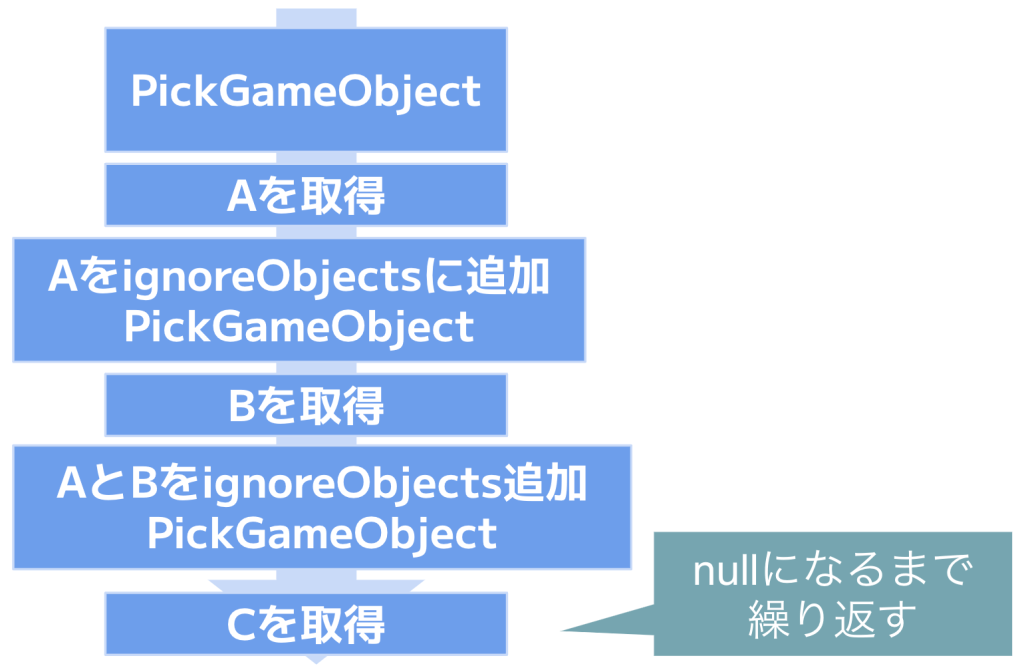
UnityのHandleUtility.PickGameObjectを使用しています。この関数は、クリック位置にある単一のオブジェクトしか取得できないため、引数で設定できる除外リストを活用して複数オブジェクトを取得します。
取得処理の流れ
GameObject gameObject = null;
do
{
    gameObject = HandleUtility.PickGameObject(point, false, objects.ToArray(), null);
    if (gameObject != null)
    {
        objects.Add(gameObject);
    }
} while (gameObject != null);

return objects;
nullが返るまでこの処理を繰り返すことで、すべてのオブジェクトをリストアップします。

苦戦したポイント
最初はPhysics.Raycastでの取得を試しましたが、UI要素にはコリジョンがないためうまく取得できませんでした。
最終的にHandleUtilityがあることがわかり、Unity側で実装している処理を参考にしながら実装しました。
プログラム全文
以下のファイルをAssets/Editorフォルダ以下に配置してください。
※右クリックドラッグによるシーンビューのカメラ移動がオブジェクト右クリック時は動かなくなるので必要な場合は適宜修正ください。
SceneViewGameObjectSelector.cs
using UnityEngine;
using UnityEditor;
using System.Collections.Generic;

///
[InitializeOnLoad]
public class SceneViewGameObjectSelector : Editor
{
    ///
    static SceneViewGameObjectSelector()
    {
        SceneView.duringSceneGui += OnDuringSceneGUI;
    }

    ///
    /// 対象のシーン
    static void OnDuringSceneGUI(SceneView sceneView)
    {
        Event currentEvent = Event.current;

        bool isDownRightClick = currentEvent.type == EventType.MouseDown && currentEvent.button == 1;
        if (!isDownRightClick)
        {
            return;
        }

        // ヒットしたGameObjectのリストを作成
        IReadOnlyList hitObjects = PickGameObjectsOnPointer(currentEvent.mousePosition);
        if (hitObjects.Count == 0)
        {
            return;
        }

        // コンテキストメニューを作成
        GenericMenu menu = new GenericMenu();
        foreach (GameObject hitGameObject in hitObjects)
        {
            string text = GetMenuItemText(hitGameObject);
            menu.AddItem(new GUIContent(text),
                false,
                () => Selection.activeGameObject = hitGameObject);
        }

        // メニューを表示
        menu.ShowAsContext();

        // イベントを使用済みにする
        currentEvent.Use();
    }

    ///
    /// 取得する座標
    /// 取得したゲームオブジェクトリスト
    static IReadOnlyList PickGameObjectsOnPointer(Vector2 point)
    {
        List objects = new List();

        // 取得できたObjectをignoreに入れ続けていきPickできるGameObjectを全て取得している
        // HandleUtility.PickRectObjectsがあるが指定した枠内にオブジェクト全体が入ってないと拾えないのでこの方法で取得
        GameObject gameObject = null;
        do
        {
            gameObject = HandleUtility.PickGameObject(point, false, objects.ToArray(), null);
            if (gameObject != null)
            {
                objects.Add(gameObject);
            }
        } while (gameObject != null);

        return objects;
    }

    ///
    /// 対象のGameObject
    /// 親子関係の表示テキスト
    static string GetMenuItemText(GameObject gameObject)
    {
        string objectName = gameObject.name;
        Transform parent = gameObject.transform.parent;
        while (parent != null)
        {
            objectName = parent.name + "\\" + objectName;
            parent = parent.parent;
        }

        return gameObject.name + " : " + objectName;
    }
}
まとめ
今回紹介した2つのエディター拡張は、日々の開発作業を効率化するツールとなっています。
「ゲームビューとスクショを重ねるツール」は、UIの配置をしやすくなり、「右クリックで任意のオブジェクトを選択するツール」は、複雑なUI階層の把握がしやすくなりました。
これからもより便利になる拡張ツールの提供を進めていき、より開発しやすい環境を作っていきたいと思います。
では、みなさんも良い開発ライフを!
参考リンク
以前「ゲームビューとスクショを重ねるツール」の制作したときの解説
https://qiita.com/nari-nari/items/d80ddf15b2f8a32238db
「右クリックで任意のオブジェクトを選択するツール」の実装で参考にしたUnityの処理
ENSAPIA Engineeringでは一緒に働く仲間を募集中です。
ご興味のある方は、ぜひこちらのエンジニア採用サイトをご覧ください。
→ENSAPIA Engineering 株式会社エンジニアの求人一覧